For details on the fields on the top half of this window, please see Student Details Window.
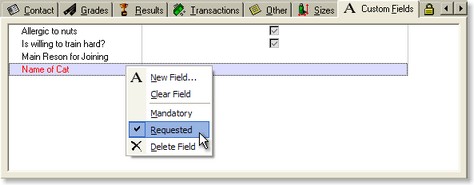
The Custom Fields Tab on the Student Details Window contains all additional custom fields in the system and their settings for this person.
Fields:
When you add or delete fields (through the right-click menu) or edit field names (Double-click the field name) on this tab, the changes are made to System wide and immediate.
Values:
Changes you make to the custom field values affect only the person whose details you are viewing.
Note: The Clear Field menu option exists to enable the value to be removed from custom fields whose type (such as a Date type field) have no editable way to delete the value, using this option will allow the value to be removed. This menu item affects only the details for the person currently being edited.
Making Custom Fields Mandatory and/or Requested:
Custom fields may also be made mandatory and/or requested, but not by clicking on them. Instead, you use the Mandatory or Requested menu options from the right-click menu.
You can select multiple fields ( or
or  & click) to set several fields at the same time.
See Mandatory and Requested Fields for more information.