|
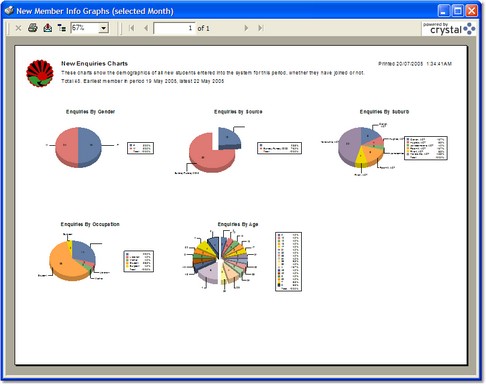
The Report Preview Window
|
|
 to print this report. If you hold down the
  key when you click the print button, you will bring up the print settings dialog allowing you to change the default printer and printer settings for this report (for your login only).
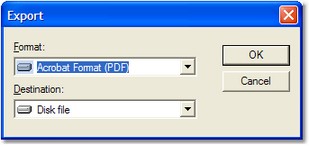
 to export the report to various formats. When you select this button, the Export Dialog is shown: