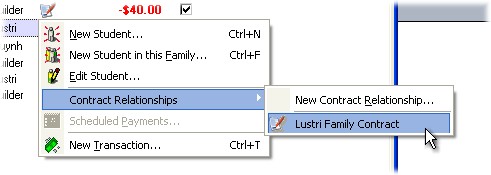
When you wish to sign a contract for a student or family, right-click on the student in the Student Browser Window, and select the contract requirement describing that contract.
If it doesn't appear, then it must have come to it's effective end date and you will need to recreate a new relationship for that contract (See Managing Contract Requirements).
NOTE: If there is a warning against that contract, ie: due to that person having trained out of contract, or the contract need signing to cover today, then the contract icon will appear against that contract requirement in the menu.
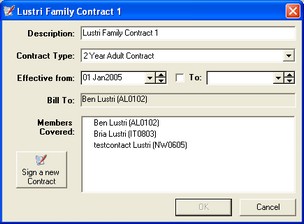
The Contract Requirement window is then displayed...
This allows you to check it is configured for the correct members, you then use the Sign a New Contract Button to bring up the New Contract Window, here you can fine-tune the contract and select the required payment options.